-
To install Batchalign, follow the instructions at https://talkbank.github.io/batchalign2/
-
Batchalign is a command line program that uses the "shell"
on your machine to execute Unix commands like mkdir or ls. On
Mac, the shell is the "Terminal".
On Windows, it is the "PowerShell". This page provides shell commands
for you to execute. These instructions supersede the
earlier descriptions in our 2023 article in JSLHR.
1.
Both the Mac Terminal and the
Windows PowerShell start at your user root level. Here, you should create a folder using: mkdir
ba_data (or whatever name you prefer instead of ba_data). Then use cd
ba_data to go inside that new folder and create subfolders using: mkdir
input and mkdir output.
2. Next, you will need to prepare your audio or video file
and put it inside the ~/ba_data/input folder. Batchalign only works on .wav and .mp3
files. If you have another format, you
could either use a third-party converter such as Amadeus Pro, Audacity, or
Video Converter to create .wav or /mp3.
3.
You can put as many files as you
wish into your input folder, and they will be processed in sequence. If your machine has enough memory and
multiple processor cores, as with the M2 Apple MacStudio, you can even create
multiple input and output folders to run multiple jobs in parallel.
4.
Batchalign supports different
processes with different verbs. The three most used are marked with an
asterisk:
6.
You can use either Whisper or
Rev-AI for transcription. The default
mode for English uses Rev-AI. For this,
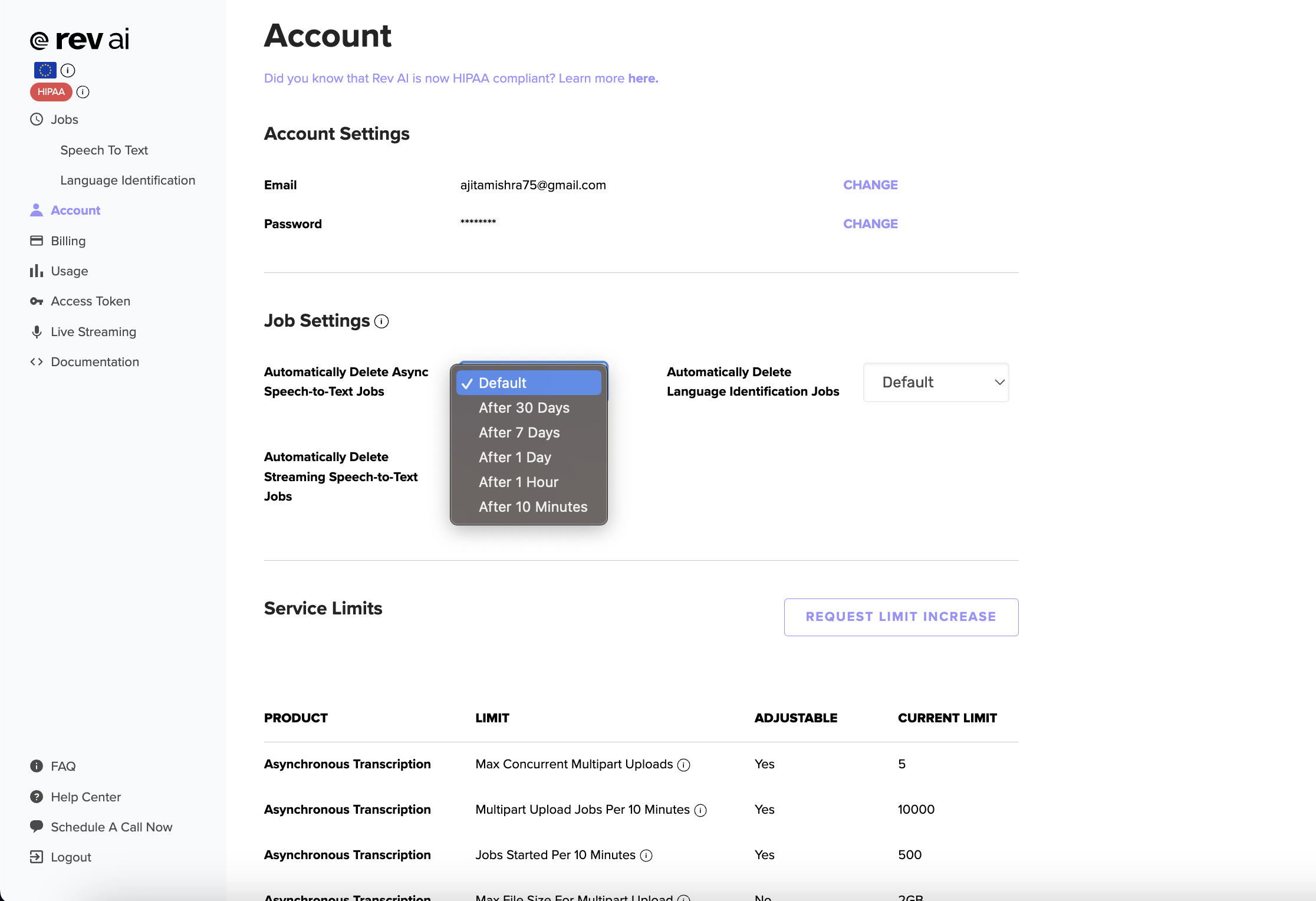
you will need to open a rev.ai account. Rev-AI provides you with 6 free hours
for your new account. Charges are $.02/minute of audio for this service. Go to
rev.ai, sign up, and on the left side of your dashboard, you will find a tab
called Access Token. Click generate to generate a new token, copy and paste the
key to somewhere you can find later. If you want to comply with IRB rules
against sending data to third parties, you can configure your Rev-AI service to
auto-delete your data after processing, as described at this
page. It is also possible to use Rev-AI
for data that must be HIPAA compliant, as described at this page.
8.
Whichever ASR engine you choose,
basic Batchalign command for transcribing is:
9.
The first time you run Batchalign, the
program will take about 5 minutes to download the material that will go into various
cache folders on your system. After that, the system will ask you for your
Rev.AI key from step 6 above, which you will need to paste into the program
when asked if you wish to use Rev.AI. Cut and paste that from the place where you saved it earlier.
10.
The program will provide output as it processes each input
file, and you will soon see transcribed or coded CHAT (*.cha) files in your
output folder(s)!
Only the transcribe function
requires the --lang flag. All other functions will read language information
from the input CHAT file.
FFmpeg installation for MacOS: We recommend that input audio files be in
.wav or .mp3 format. If your files are
in another format, the FFmpeg program can convert them. However, you must have FFmpeg installed. For MacOS this can be done by using Homebrew.
To install Homebrew, go to https://brew.sh and copy the long command from the box to your
terminal. Once installed, you can add
ffmpeg using this command: brew install
ffmpeg
FFmpeg for Windows: For information on how to install FFmpeg on windows,
please go to https://www.wikihow.com/Install-FFmpeg-on-Windows. This process is rather tricky.
.m4a conversion: If you record with iPhone, the format is m4a.
Since batchalign only accepts mp3, mp4, and wav, you will need to convert .m4a
to .wav. You can do this using a program such as Audacity or Amadeus Pro or an
online converter site such as this one: https://cloudconvert.com/m4a-to-wav
Support Information:
Please feel free to reach out if you have
questions! You can send email to macw@cmu.edu or to houjun@cmu.edu. Should you reach out for help, please run
“batchalign version” to tell us which version you are using.
There is a -vvv flag which allows
Batchalign to run a file in “diagnostic mode.” For instance, if your original
command was:
batchalign align ~/ba_data/input
~/ba_data/output
To get diagnostic information, you would
write:
Batchalign -vvv align ~/ba_data/input
~/ba_data/output